Auto-scale GitHub Runners (and ADO Agents) with Azure Container Apps Jobs and Workload Profiles

Intro

In this blog I want to explain how to run your private GitHub Runners (this should work for ADO Agents as well) using the new Azure Container Apps Jobs (in preview) functionality with Workload Profiles (also in preview) using auto-scaling with KEDA.
With this setup there’s no need for a complicated container (AKS) infrastructure deployment (and maintenance!) with enough flexibility, scalability and cost saving.

Container Apps and Jobs don’t support running Docker in containers. Any steps in your workflows that use Docker commands will fail when run on a self-hosted runner or agent in a Container Apps Job.

I have created a public GitHub repo where you can find all the code related to this post, mostly in Terraform (I have added also Azure CLI scripts).

While I was writing this post, Microsoft published a post like this one, but in the examples there’s no Workload Profile functionality with VNET Integration which supports user defined routes (UDR) and egress through NAT Gateway (or Azure Firewall in a hub and spoke setup) which make possible to run the runners in a private environment, to connect to your Azure resources without public access.

Using Azure Container App Jobs is the perfect use-case for this kind of scenarios, the Jobs are made for on-demand processing, exactly what GitHub Runners jobs are.

Continue reading “Auto-scale GitHub Runners (and ADO Agents) with Azure Container Apps Jobs and Workload Profiles”

Using Azure Managed Identity with .Net Core on Azure DevOps Agents

During my last project I needed to run some integration test written in .Net Core 2.2 in an Azure Devops Pipeline.

The code needed some secrets from an Azure KeyVault and doing some other stuff on other Azure Resources using Azure Managed Identities for authentication on them.

In .Net Core you can easily accomplish this using the AppAuthentication Nuget library.

Here an example how to use this library for getting secrets etc.. from the KeyVault.

To run this code you need an Azure infrastructure where Managed Identities is enabled, like a VM, Azure Web App/Function App etc….

So, how can you run this code on Azure DevOps agents?

Continue reading “Using Azure Managed Identity with .Net Core on Azure DevOps Agents”

Create a sharded MongoDB in Azure Cosmos DB

During my last project I was setting up a Release Pipeline in VSTS and one of the steps was to create a Sharded MongoDB in Cosmos DB.

I am a big fan of the Azure CLI, which I use quiet often.

I started to create in bash an Azure CLI script but soon I discovered that it was not working well. The script gave no errors, everything seemed to be ok, but I was getting an error when inserting a document that the sharded key was not found/provided. Continue reading “Create a sharded MongoDB in Azure Cosmos DB”

Get Cognitive Services Keys and Endpoint in an ARM Template

For a demo Azure Logic App I need to setup an Azure Cognitive Services account for the Computer Vision API.
I set up the resources in Azure using an ARM template so that everything is created in a reproducible way.
My logic app needs a connection to the Cognitive Services, which consists in an API Key and an endpoint.

I was not able to find a template in the Azure Quickstart Templates repo to get this information, so I find it out myself. Continue reading “Get Cognitive Services Keys and Endpoint in an ARM Template”

Mount your Azure Cloud Shell to another Storage Account

I am a heavy user of the Azure Cloud Shell, I use it every day working with the CLI 2.0 to deal with my Azure Resources.

If, like me, the first time you started the Cloud Shell and followed the wizard and clicked on the button “Create Storage”, you ended up with a new Resource Group containing a Storage Account with a random name.

I don’t like random names with my resources, so I will show you how to control this and mount the Azure Cloud Shell with a Storage Account of your choice.

Continue reading “Mount your Azure Cloud Shell to another Storage Account”

Create output variables with Azure CLI 2.0

I’m using more and more the Azure CLI 2.0, which makes my scripting life with Azure Resources a lot easier.

The default output of the Azure CLI is json, but you can also use other kind of output formats, as described in this blog.

I want to have some variables that I can reuse in other commands, so let’s say I want to get the name of all the Resource Groups which have a tag called Kind with a value VM, I can use the following JMESPath query:

az group list --query "[?tags.Kind=='VM'].name"

The output will be:

[
  "Development",
  "Mystique"
]

Continue reading “Create output variables with Azure CLI 2.0”

Azure Hidden Gems: Resource Policies

Today I want to show a really useful Azure feature to help you with the governance of your Azure Subscriptions: Azure Resource Policies:

Resource policies enable you to establish conventions for resources in your organization. By defining conventions, you can control costs and more easily manage your resources. For example, you can specify that only certain types of virtual machines are allowed, or you can require that all resources have a particular tag. Policies are inherited by all child resources. So, if a policy is applied to a resource group, it is applicable to all the resources in that resource group.

How Resource Policies works

First of all, you need a policy definition.

Here a description of the structure.

Let’s create one!

You can create policies definitions directly with the Azure Rest API or using PowerShell, the Azure CLI 1.0 or 2.0.

I prefer using PowerShell:

First login in Azure with: Login-AzureRmAccount and if you have more subscriptions, select the right one with Select-AzureRmSubscription.

Continue reading “Azure Hidden Gems: Resource Policies”

A better way (and script) to add a Service Principal in Azure for VSTS

From Visual Studio Team Services (VSTS) it’s possible to deploy to an Azure Subscription using an Active Directory Service Principal.

The Microsoft documentation refers to a blog post which describes a 3-clicks and a manual way to setup this principal.

For both the suggested ways (3-clicks or manual), there are some concerns from my side about the principal setup, which I think they could be improved:

  • The principal which is created during the process gets the “Contributor” role granted on the whole Azure subscription, and using the manual powershell script, the default role is even “Owner” (this can be modified).
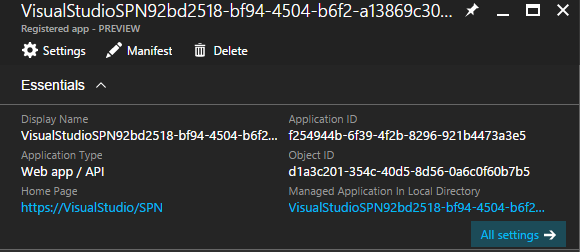
  • The name of the Active Directory Application/Principal is some random guid which is difficult to be identified, see this picture:

principalcreatedrandom

Continue reading “A better way (and script) to add a Service Principal in Azure for VSTS”

Setting up VSTS with ARM Templates

In this post I want to show you what I think it’s the best way to setup VSTS working with Azure Resource Manager Templates.

Introduction

At the customer I am currently working for, we are setting up a new Azure Big Data ingestion environment and we wanted to do it using the Infrastructure as Code approach. With Azure this obviously goes with ARM Templates.

For source control, build and deployment we use Visual Studio Team Services (VSTS).

About VSTS, Build and Release Management

I have seen different setups with VSTS, some of them where the deployment take place from the build, or directly in Release Management without a build.

My approach is to have a clear separation of concerns between the Build and the Release Management.
The Build is for compiling, (Unit) Testing and creating artifacts for the deployment.
The Release Management’s responsibility is for deploying the artifacts created during the Build process. Continue reading “Setting up VSTS with ARM Templates”

Blog at WordPress.com.

Up ↑